
For most of social media history, there was no button for sharing someone else’s post. You had to improvise. On Twitter, people copied a tweet and typed “RT @username” in front of it, editing the wording down so the whole thing still fit in 140 characters. Twitter didn’t ship a real retweet button until November 2009, more than three years after launch. Instagram took even longer. It didn’t add an official repost feature until August 2025, and for years before that, creators leaned on third-party apps to do the job.
So when people ask me how to repost on TikTok, I get why. Resharing arrived late to almost every platform, and TikTok’s version isn’t obvious. The button isn’t sitting where you’d expect it. I’ve taught social media at Rutgers Business School for years and written six books on digital marketing. I cover platform mechanics every week on my Your Digital Marketing Coach podcast. And I still had to go looking for the repost option the first time I wanted to use it. If you’ve been hunting for it too, you’re not doing anything wrong. TikTok just buried it.
This guide walks through exactly how to repost a video and how to remove one when you tap it by accident. It also covers where your reposts actually live, and how reposting differs from a Duet, a Stitch, or just saving a video.
Key Takeaways
✅ Reposting shares another creator’s video with your followers through their For You feed, with the original creator still fully credited.
✅ To repost: tap the Share arrow on a video, then tap Repost. You can also press and hold on the video and tap Repost.
✅ To undo it: go back to the video, tap Share (or press and hold), then tap Remove repost.
✅ Your reposts don’t land in your main video grid. They collect under a separate repost tab on your profile, marked with a two-arrows icon.
✅ A repost is not a Duet or a Stitch. Reposting leaves the original video untouched. Duet and Stitch build a new video that includes your own footage.
What does reposting on TikTok actually do?
Reposting on TikTok is a built-in way to push another creator’s video into your followers’ and community’s For You feed, with your profile photo and nickname attached as the recommendation. According to TikTok’s own support documentation, reposted videos appear the same way other videos do in the feed, just labeled as a repost so viewers know you shared it.
The original creator keeps everything. Their username, video, and sound stay theirs, and viewers can tap through to the original. You’re acting like a curator, not a re-uploader. Think of it the way a “share” works on Facebook or LinkedIn: you’re passing along something you found, and the credit stays with whoever made it.
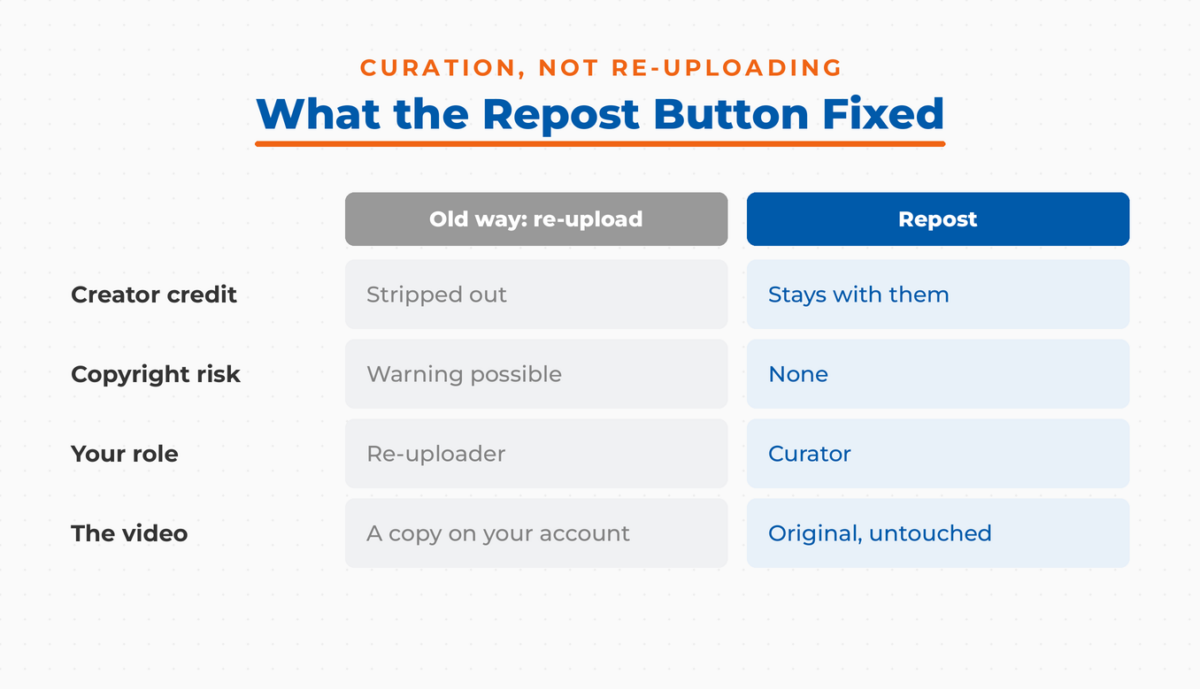
This is a real shift from how sharing used to work on TikTok. Before the repost button existed, the only way to put someone else’s video on your account was to grab it with a TikTok downloader and re-upload it. That sometimes triggered a copyright warning, and it stripped the original creator out of the picture entirely. Reposting fixed that. TikTok began testing the feature in early 2022 and rolled it out more broadly over that year.
Every platform that has added one of these buttons has learned the same lesson: making resharing frictionless changes behavior fast, and not always for the better. Chris Wetherell, who led the team that built Twitter’s Retweet button, later told BuzzFeed News, “We might have just handed a 4-year-old a loaded weapon.” That’s worth keeping in mind. Reposting is powerful precisely because it’s easy, so be intentional about what you put your name on.
The table below shows how late a native reshare button arrived on each major platform, and what people relied on before it:
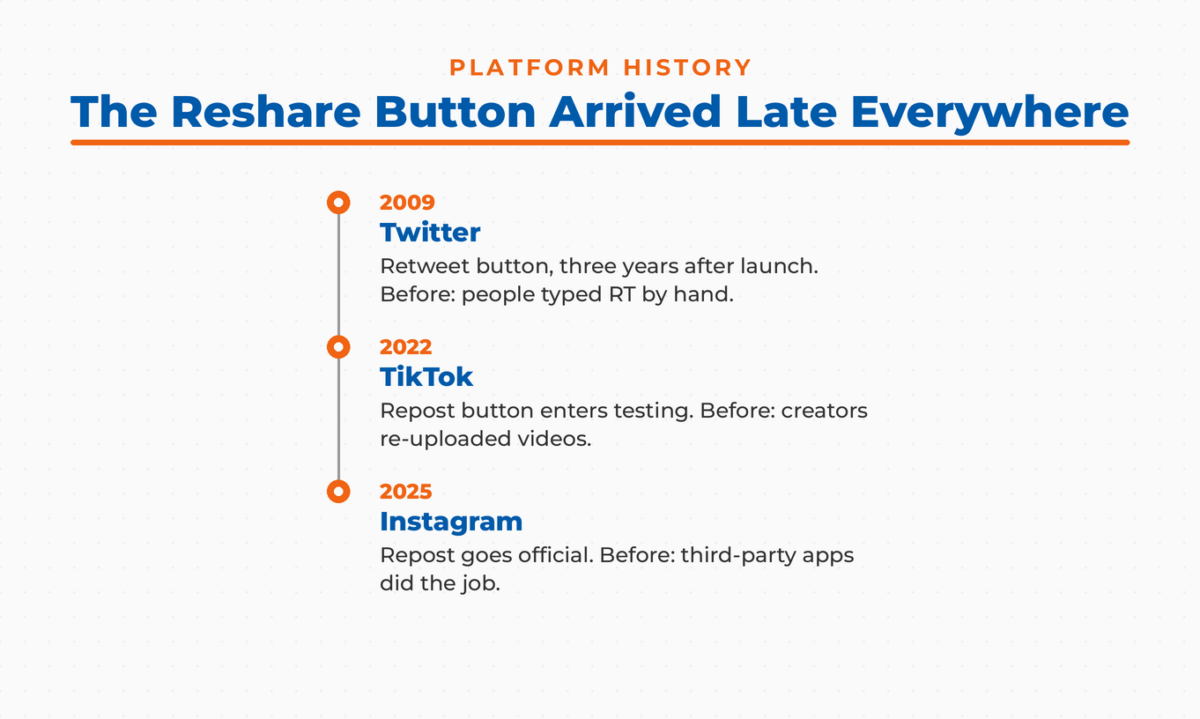
| Platform | Native reshare button | What people did before |
|---|---|---|
| Twitter / X | Retweet button, November 2009 | Typed “RT @username” by hand |
| Repost button, August 2025 | Leaned on third-party repost apps | |
| TikTok | Repost button, tested early 2022 | Downloaded and re-uploaded videos |
How do you repost a video on TikTok?
To repost a video on TikTok, tap the Share button (the curved arrow on the right side of the screen), then tap Repost. You can also press and hold on the video and choose Repost from the pop-up. Either way takes two taps, and you can add a short comment that your followers see with the video.
The full flow, from TikTok’s own documentation:
- Open the TikTok app and go to the video you want to repost.
- Tap the **Share** button on the right side of the screen, or **press and hold** on the video itself.
- Tap **Repost**.
- If you’d like, add a short comment. It shows up above the original creator’s caption when the video reaches your followers.
There’s a third path worth knowing. If a friend has already reposted a video, you can tap their profile photo on that video and repost it yourself from there. Small thing, but handy when you’re scrolling and see something a friend recommended that you want to pass along too.
One note on availability: TikTok says the repost feature can vary by account and region, and it rolls out gradually. So if a friend has the button and you don’t yet, that’s normal.
How do you remove a repost on TikTok?
To remove a repost on TikTok, go back to the video you reposted, tap the Share button, then tap Remove repost. You can also press and hold on the video and tap Remove repost, or tap your own profile photo on the video, tap Reposted, and then remove it. The video disappears from your followers’ feeds and your repost tab.
This matters more than it sounds, because the repost button sits close to where your thumb naturally lands in the sharing menu. Accidental reposts happen constantly. I’ve done it. Undoing one is just as fast as making it, and once you remove a repost, it’s gone from circulation.
If you want to see everything you’ve reposted before deciding what to remove, head to your profile and look for the repost tab, covered in the next section.
Where do your reposts show up on TikTok?
Your reposts show up in two places: in your followers’ For You feed, labeled with your name and photo, and under a dedicated repost tab on your own profile, marked by a two-arrows icon. They don’t mix into your main grid of original posts.
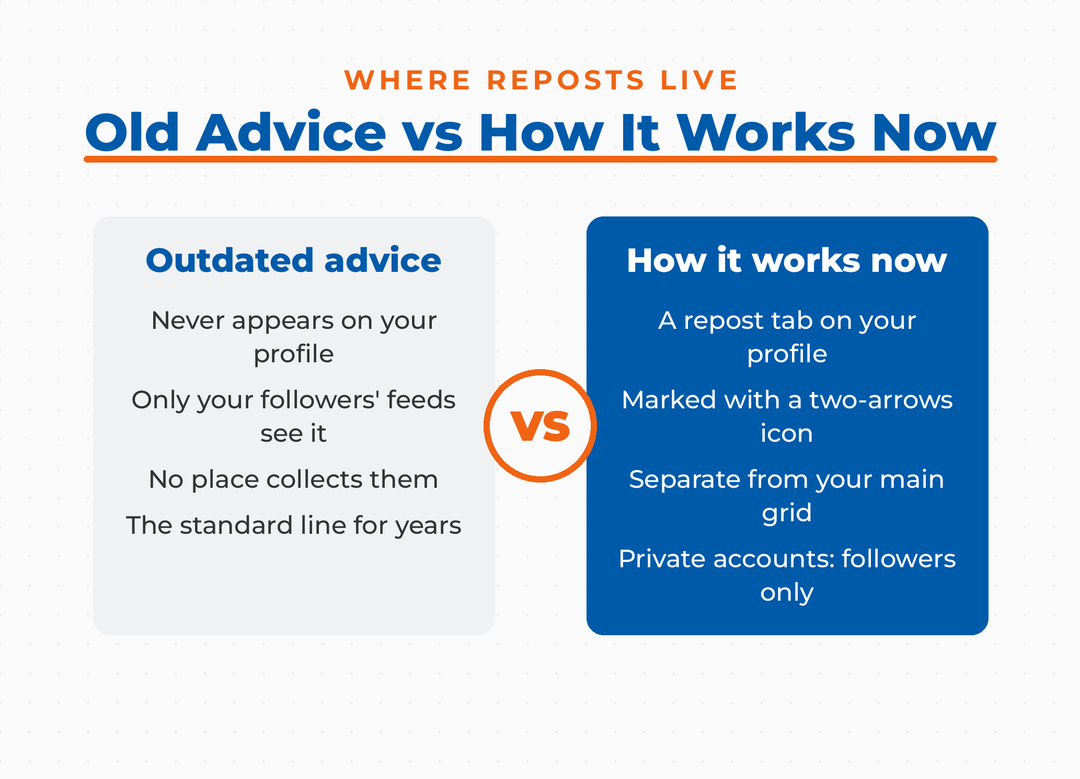
This is where a lot of older advice is now wrong. For a long time, the standard line was that reposts never appear on your profile at all. That used to be true. TikTok’s support documentation now states that you can find your reposts on your profile under the repost tab, collected in one place and separate from the content you created yourself. If you have a private account, only your approved followers can see that tab and your reposts in their feeds.
Keeping reposts out of your main grid is a smart bit of design. Your original work stays front and center when someone lands on your profile, while the stuff you’re amplifying lives one tab over. For creators and brands building a clear identity, that separation is genuinely useful. It’s one of the reasons reposting can support your TikTok growth strategy without diluting your own content. Instagram’s repost button, added in August 2025, also sends reposts to a separate tab. On Instagram I recommend roughly 70 percent original content to 30 percent reposted, and my guide on how to repost on Instagram explains why.
Repost, Duet, Stitch, or Save: which sharing option should you use?
Reposting is one of four ways to work with someone else’s TikTok. A repost shares the original video untouched. A Duet or Stitch creates a new video that includes your own footage. Saving or downloading just pulls the file for your own use. Which one you pick depends on whether you want to amplify, respond to, or repurpose. If the answer is respond, my guide to how to Duet on TikTok covers the recording flow and the privacy setting that decides who can Duet you back.
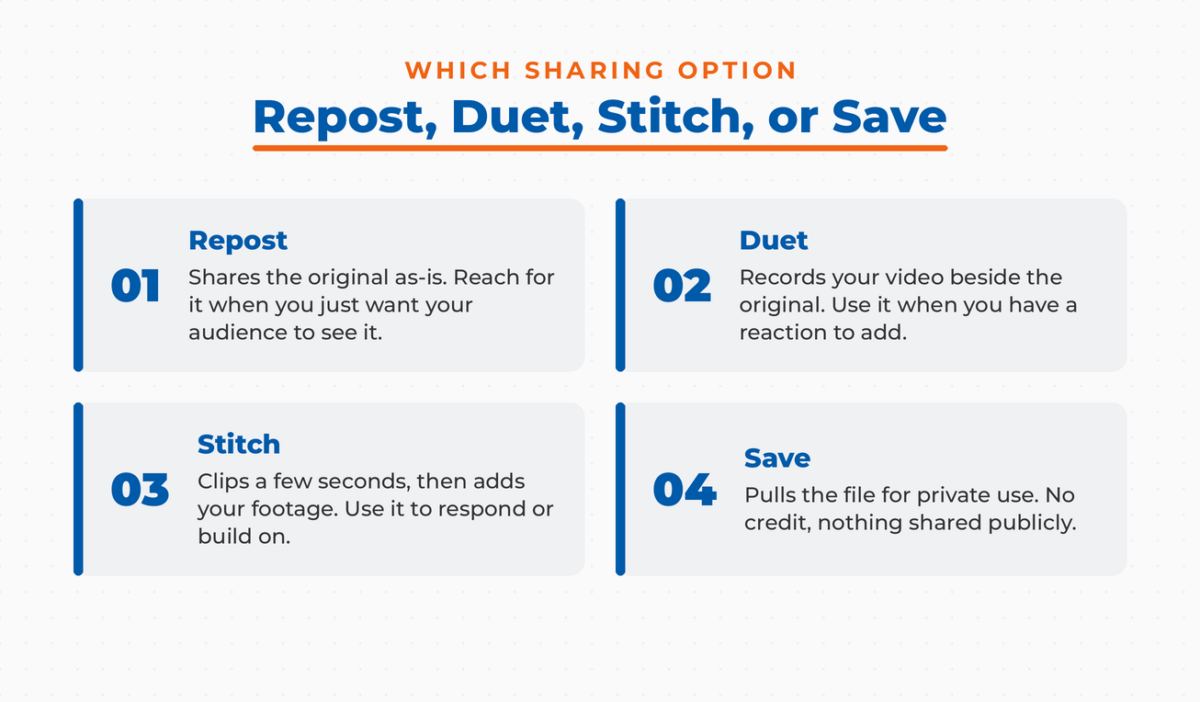
| Option | What it does | Original creator credited? | Creates a new video? |
|---|---|---|---|
| **Repost** | Shares the original video to your followers’ For You feed | Yes, fully | No |
| **Duet** | Records your video side by side with the original | Yes | Yes |
| **Stitch** | Clips a few seconds of the original, then adds your footage | Yes | Yes |
| **Save / Download** | Pulls the video to your device or Favorites | No (private use) | No |
Reach for a repost when you simply want your audience to see something as-is. Reach for a Duet or Stitch when you have something to add, whether that’s a reaction, a rebuttal, or your own spin. If you’re going the Duet or Stitch route and want the finished clip to look polished, a tool like Adobe Express handles the trimming and captions cleanly. Full disclosure: I’m an Adobe Express Brand Ambassador, and it’s the editor I actually reach for. For inspiration on what’s worth amplifying versus creating from scratch, my post on TikTok video ideas is a good starting point.
How should brands and creators actually use reposting?
Reposting is most valuable as a curation and community tool, not a shortcut to skip making your own content. Sharing a customer’s video or a piece of trending content that fits your brand tells your audience what you stand for and boosts the original creator. Used well, it keeps you active on days you don’t have an original video ready. TikTok Stories fill the same gap with your own footage, and they disappear after 24 hours.
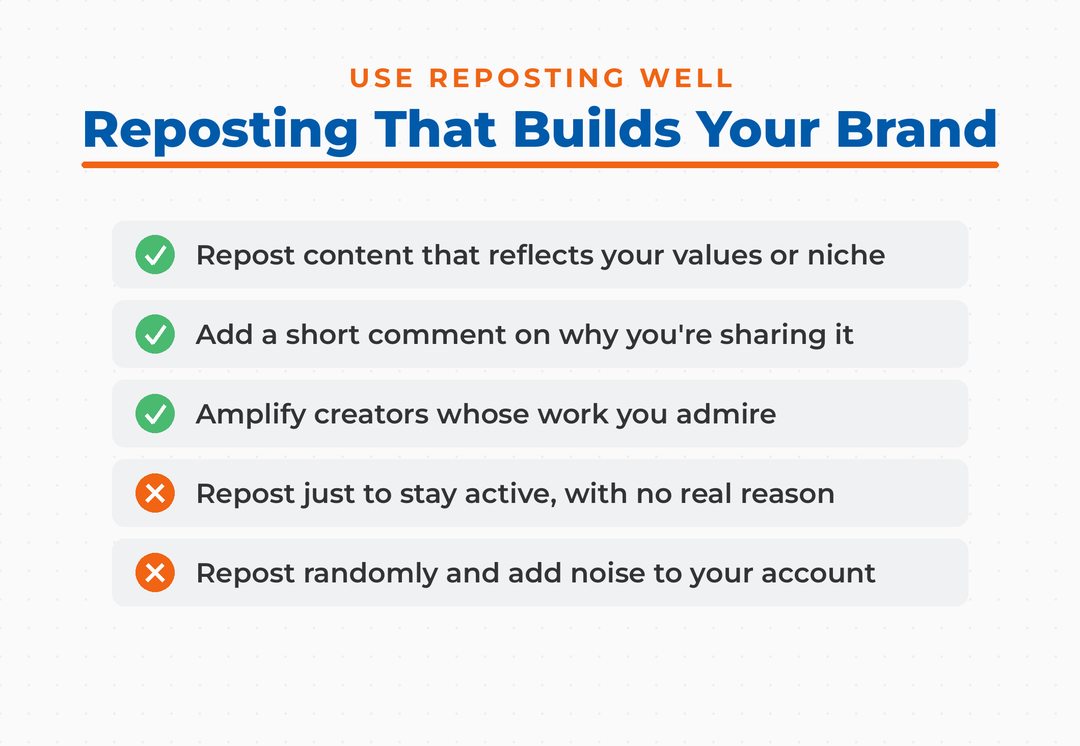
My honest take after years of teaching this: reposting works best when you have a real reason to share, not when you’re just trying to stay active. Every video you reshare is an endorsement, and your followers read it that way. When you repost content that reflects your values or your niche, you train TikTok’s recommendation system on what your account is about. That can help your own videos reach the right For You feeds. When you repost randomly, you just add noise.
Reposting also happens to be one of the lowest-effort ways to support other creators, which comes back around. Amplify the people whose work you admire, and a good number of them will pay attention to yours. That’s how going viral on TikTok often starts, with other accounts choosing to spread your content rather than you begging for reach. The latest TikTok statistics show just how much of the platform’s discovery runs on recommendation rather than search, and reposting plugs directly into that engine.
Frequently Asked Questions
Yes, but not in your main video grid. Reposts collect under a separate repost tab on your profile, marked with a two-arrows icon, and they also surface in your followers’ For You feeds. If your account is private, only approved followers can see your repost tab and your reposts.
TikTok doesn’t give creators a clean, reliable list of everyone who reposted a specific video. Its notification behavior around reposts has also been inconsistent over time. What you can count on is that each repost carries the reposter’s profile photo and nickname, so anyone watching in the feed can see who recommended it.
A few reasons. Your app may need an update, the feature rolls out gradually by region and account, or the original creator may have turned off resharing on their content. Update TikTok to the latest version and try pressing and holding on the video, which sometimes surfaces the option when the Share menu doesn’t.
No. A repost shares the original video exactly as it is, with nothing added. A Duet records your video alongside the original, and a Stitch clips a few seconds of the original before your own footage. Duets and Stitches create new videos. Reposts don’t.
No. Your profile photo and nickname are attached to every repost, since the whole point is a personal recommendation. If you want to limit who sees your reposts, switching to a private account restricts them to your approved followers.
Ready to Put Reposting to Work?
Start by reposting one video this week that genuinely fits your brand, add a short comment explaining why you’re sharing it, and watch how your followers respond. Then use the repost tab to keep track of what you’re amplifying so your profile tells a clear story. Reposting is a small feature, but it quietly shapes how TikTok reads your account.
If you want to keep a pulse on what’s actually worth resharing, the latest TikTok trends are worth checking regularly. And if you’d like help building a coordinated TikTok strategy alongside your other channels, reach out about Fractional CMO services or come learn with the Digital First community.