
A lot of businesses, not knowing better, will take that video that they finally got recorded and simply upload it to YouTube together with a title and description. While on other social networks this is pretty much all you can do, YouTube has a distinct feature which allows you to engage with viewers and get more ROI out of your video: YouTube Cards. If you are not using them to your advantage, you are missing out on the potential of increased investment from every person who ends up viewing your video.
In this guide, I’ll talk about what a YouTube card actually is, and what kinds of cards are available. This will help you decide which type or types to use. Then, we’ll consider how YouTube cards are best employed, and how to track your results with them. This way, you’ll have a thorough grasp of the hows and whys of this important tool.
Key Takeaways
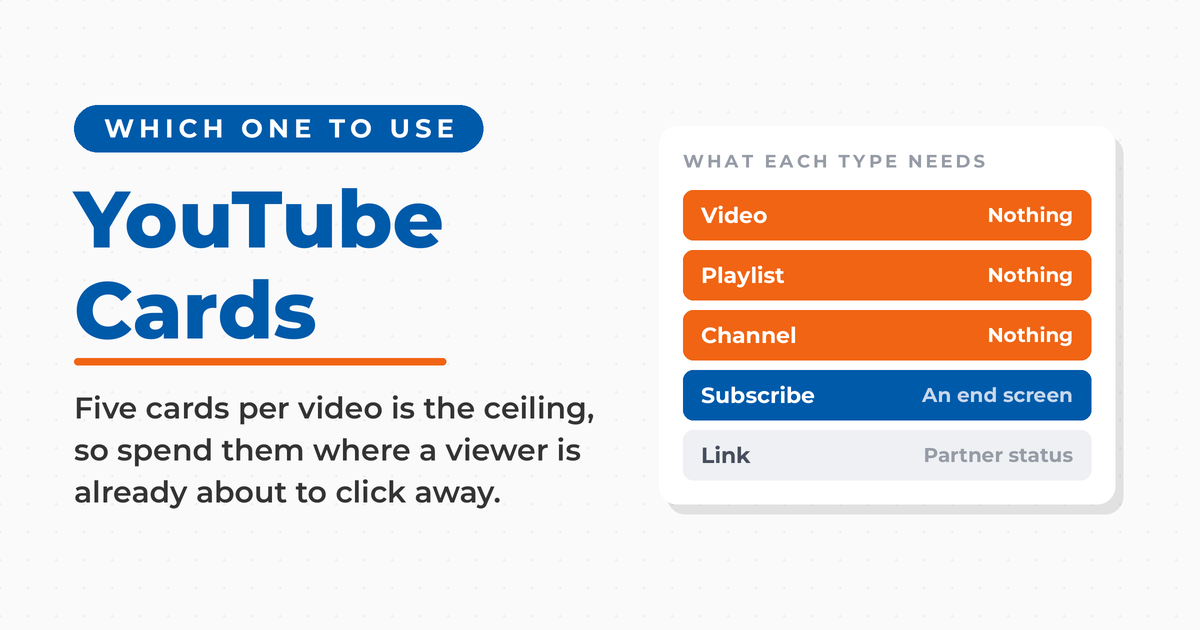
✅ YouTube info cards come in four types, and subscribe is not one of them. Video, playlist, channel, and link are the only card types YouTube Studio offers, and you can add up to five of them to a single video.
✅ The subscribe prompt lives on end screens instead. End screens run in the last 5 to 20 seconds, hold up to four elements on a standard 16:9 video, and need a video that runs at least 25 seconds.
✅ Saving your cards for the final seconds backfires. Card teasers are suppressed while an end screen is showing, so a card placed inside that window loses the teaser that makes viewers notice it at all.
✅ Only link cards require the YouTube Partner Program. Video, playlist, and channel cards are available to every channel, so a brand-new channel can still use cards to send viewers deeper into its own library.
✅ Cards go silent in two situations worth checking first. They never appear on videos set as made for kids, and they stop showing when a video is claimed by Content ID and the content owner has set up a campaign.
✅ Diagnose a weak card by separating teaser data from card data. The Engagement tab reports teasers shown, teaser clicks, cards shown, and card clicks as four different numbers, which tells you whether your problem is timing or relevance.
What are YouTube Cards?
Chances are that, unless you have a thorough knowledge of YouTube, the entire concept is foreign to you. However, the best definition of a YouTube card comes from the source:
“Cards are preformatted notifications that appear on desktop and mobile which you can set up to promote your brand and other videos on your channel.”
These are typically inserted into the video frame itself.

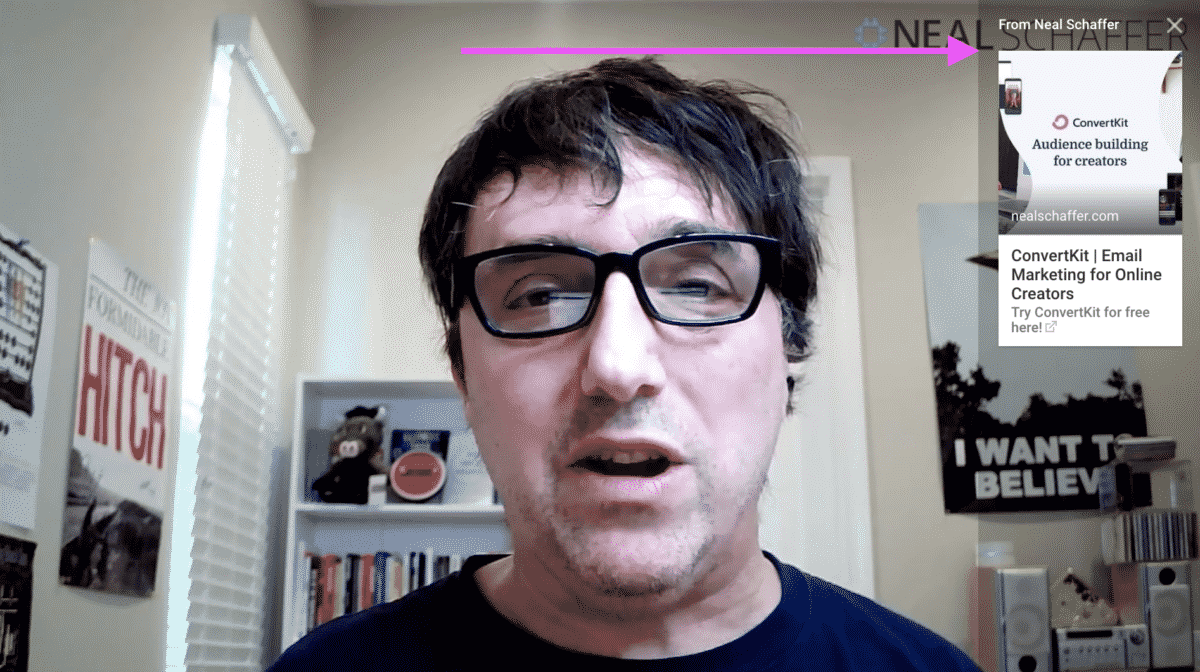
Once set up, a small circle with an “i”, or teaser, appears in top right corner of the video, letting viewers know that there is additional information available to the viewer if they click on that button.

If viewers tap or click the teaser, the card then appears along the right side of the video. From here, they can opt to follow the link to whichever destination you’ve chosen.
Cards can be placed at different points in your video, or even appear throughout. You can have up to five cards per video, so let’s see how to maximize your engagement!
Types of YouTube Cards That Are Available
Once you understand the types of YouTube cards that YouTube supports, you will begin to see their potential. Keep in mind, however, that YouTube doesn’t allow cards on videos that are made for children. If your brand is B2C with a young market, such as a toy or children’s clothing brand, then you may find that they aren’t appropriate.
Video Cards
Video cards, simply put, are a link to another of your YouTube videos. This type of YouTube card might include a moving teaser, or it could just be a thumbnail depending on your choices. That makes the card only as clickable as the image sitting behind it, so the same YouTube thumbnail best practices that earn the click in search results are what earn the click inside your video. In many cases, the link is to a related video and not just something else you’ve produced. For instance, if you have a series of videos then it makes sense to use a video card to link to the next one.

Playlist Cards
These YouTube cards contain a link to one of your YouTube playlists. To extend our example from above, if you have a video series then you might make them into a playlist. Then, you could insert a card that links to the playlist. It’s also a great option when the playlist is tailored to the same consumer subset as the video that you’re inserting the card into. Either way, the idea is to boost views and encourage viewers to discover more of your content.

Subscribe (an End Screen Element, Not a Card)
Subscribe gets lumped in with cards almost everywhere, so it is worth being exact: it is not one of the four info card types. Subscribe is an end screen element, which means it can only run in the closing seconds of a video and never appears mid-roll the way a video, playlist, channel, or link card does. It is still one of the easiest ways to boost subscriber counts, since it puts the ask in front of viewers right after they have enjoyed your content. Read on for details of what end screens are and who can use them.

Channel Cards
Channel cards link to another channel, for instance that of a partner or another channel that you might recommend to others. If you have associated brands within your company, this is a great idea. I also know of content creators that run multiple channels because they cover slightly different topics within the same niche. That split only pays off if each channel reads as its own thing on arrival, which makes YouTube branding the deciding factor in whether a channel card sends anyone anywhere. No matter why you use this YouTube card, they’re a great way to cross-pollenate between viewer groups.
Link Cards
For those in the YouTube Partner Program, this YouTube card allows you to link to an external website. Influencers might want to send people to affiliate marketing opportunities as well as their sponsored partners where companies might want to send people to their shopping cart or products and services pages.
Unfortunately, the fact that you need to qualify for monetization to use link-based YouTube cards reduces their value for commercial accounts until you can reach the threshold to participate in the YouTube Partner Program.

What is the Difference Between YouTube Cards and End Screens?
End screens are not cards at all. They are a separate feature that runs during the last 5 to 20 seconds of your video, with their own element types and their own rules, and your video has to run at least 25 seconds to have one. You can think of an end screen as a type of outro, though it can also be placed after the main outro. It is the best moment to encourage viewers to take the next step with you, whether that means checking out the main channel, visiting a website, or following some other call to action.
The most important feature of end screens? The subscribe element only exists there, and it is the one thing an info card cannot do for you. You are not limited to subscribe, though. An end screen holds up to four elements in total on a standard 16:9 video, and other aspect ratios may allow fewer, so subscribe plus three others is the ceiling rather than the starting point. Make every one of them relevant, or the subscribe element gets crowded out by the things you added around it.
How Do you Make and Add a YouTube Card to Your Video?
No matter which types you choose, YouTube Cards are incredible easy to set up:
Your first step is to click on your channel icon. This is the same one which you see next to any comment you’re leaving. It’s also the one used if you wish to upload a video. In the dropdown menu, choose YouTube Studio. This opens a video upload and editing page.
Inside your YouTube video editor, you will see your video has 4 main elements: video, audio, blur, and cards. Simply click on the “+” next to the card icon and you will be able to add a YouTube card to your video and customize it to your liking. Any of your videos, playlists, or internal links can be chosen (or external for Partners).
Make LinkedIn Your Best Source of Clients
My latest book helps professionals, entrepreneurs, and business owners turn LinkedIn from a static profile into a real source of clients and growth.
Maximizing LinkedIn for Business Growth gives you clear, practical steps to build a profile that gets noticed and a network that actually sends business your way.
Grab your copy on Amazon and put it to work this week. Click the cover or the button below to get started.

You then decide on the exact minute/second you would like your card to appear in the video and for what duration. This is done with a slider that’s similar to the one which shows video progress during playback. Note cards can only display for a maximum of 20 seconds. For this reason, be sure to select an appropriate time during the video. Finally, you can pick a position for your card to pop up in. This is especially important if you’re using multiple YouTube cards.
Repeat the process for each Card you wish to insert. Remember, there’s a maximum of five, so make it count.
How Do You Use YouTube Cards?
Now that you know what they are and how easy they are to create, you might be wondering how you can most effectively use YouTube cards in your videos. Here are some ideas:
Increase subscribers
First, it’s always a great idea to use the Subscribe Card to remind viewers to subscribe to your channel if they haven’t done so already. As with social networks, the number of subscribers you have has a significant impact on your overall analytics. Plus, you get more opportunities to reach people with your message. The prompt is the easy part, though, and it does its best work next to the other tactics that actually get you subscribers on YouTube.
Link cards are no-brainers
After this, a Link Card is the no-brainer call-to-action to strategically use to drive people to your website. Of course, this assumes that your channel is part of the Partners program and joining is subject to certain conditions. If you don’t have this feature available, be sure to add the link in your video subscription. Then, consider pointing out that there’s a link to follow down there.
Drive viewers deeper into your channel
Another option is to show Video Cards, allow your viewers to get more information from another channel video that describes what you are talking about in more depth. This is a great feature to drive viewers deeper into your content. Similarly, if you have more than one channel that covers your niche, it might be beneficial to select one from the other channel. Just make sure that your choices are relevant and boost your YouTube video optimization.
Expose your older evergreen videos
Video Cards are also great to recommend new videos on your related older videos. As the video above pointed out, YouTube cards can be added to videos that have already been uploaded. And if you add one, it can be removed and replaced with another. This means that evergreen videos can have their cards replaced as appropriate for different campaigns.
Of course, video cards aren’t the only option for directing people to new videos. If you have a Playlist around a topic that is mentioned in the video, use the Playlist Card instead of the Video Card. In turn, you can use the YouTube cards in each video to encourage greater viewer participation.
Finally, the Channel Card is best used to highlight partners, collaborators, or those that have inspired your video. To some degree, this practice provides some social proof that your channel has a real person behind it. In addition, you give credit where it’s due and introduce your audience to them. If those other channel owners do the same thing, you’ll end up helping each other increase subscriber counts.
Some Best Practices on Using YouTube Cards
Place your cards late, but before the end screen starts
First, hold your cards toward the later part of the video so they do not pull attention away from the point you are making. Cards that fire too early draw a viewer’s eyes off the main feature, and used carelessly the whole video starts to feel spammy. There is a hard stop on the other side, though. Card teasers are suppressed while an end screen is running, so any card you place inside those final 5 to 20 seconds shows no teaser at all and is effectively invisible. On a fifteen minute video the old “last 20%” rule of thumb still leaves you about three minutes of usable room. On a two minute video it leaves you almost none, so time your cards against where the end screen begins rather than against a percentage of runtime.
Use visual or audio cues
Second, since YouTube Cards can sometimes be easy to miss, make sure that you use visual or audio cues to literally point them out during your video at the correct timing. For instance, your video can call attention to the card. Think, “see my other video on XX.” Other examples of this technique are available on Backlinko.com.
Add cards to boost audience retention
Third, consider adding cards where you see a drop off in audience retention. In particular, video and playlist cards help draw people further into your content. Unfortunately, doing this can be time consuming if you don’t know how to do it. Using a tool like TubeBuddy can help make the process painless. At that point, your biggest concern is which card design to use.
Use YouTube cards for strategic SEO
Fourth, use YouTube cards to boost the SEO rankings inside YouTube for selected videos. In particular, user retention is a major YouTube metric that helps with both SEO and the algorithm. The reason for this, of course, is simple: the most popular videos, and the ones that people find most relevant, are the ones which should be shown first. Therefore focus your YouTube Cards on strategically sending people to those videos where you have the highest retention rate, thus giving your Channel’s SEO a boost. Overall, you’ll get a better shot at reaching customer eyeballs with the smart use of YouTube cards.
Use tools to bulk edit YouTube cards
Finally, you should use YouTube Tools like VidIQ or TubeBuddy to bulk edit YouTube Cards. This saves time while also letting you ensure that cards shown are highly relevant. It’s easy with subscribe cards, but some other types are sometimes harder to regulate. For instance, you might wish to link to one video on a subset of content, and a different video on others.
How to Measure the Effectiveness of Your YouTube Cards
YouTube Analytics is a powerful YouTube tool that allows you to analyze all of your videos, and that analysis includes YouTube Cards analysis. This means that every aspect of your videos, and their performance, is analyzed. In turn, you’ll be able to pinpoint the best and worst-performing content.
In particular, the Engagement tab inside YouTube Analytics includes Top cards. The Top Cards report shows you which cards your viewers clicked most, across all videos on your channel. Often this will be a “subscribe” card, since this is a very popular action. However, it might be that certain video, link, or playlist cards are also popular.
However, the frequency of audience clicks isn’t the only thing which YouTube tracks. Clicking on “See More” at the bottom of that Top Cards widget will allow you to see analytics for each of your YouTube cards in depth, including:
- Card clicks: How many times is the card clicked on?
- Cards shown: Which cards are displaying on what videos? This is especially useful when you need to make revisions.
- Card teaser clicks: How often are people clicking on those teasers to see more information?
- Card teasers shown: Which ones are getting shown the most often, and on which videos?
- Clicks per card shown: This one averages out the click frequency for all Cards on a particular video.
- Teaser clicks per card teaser shown: An averaging of teaser clicks over all of your teaser cards.
- Average teaser clicks per teaser impression: How many times is a teaser clicked on when people see it?
As with most analytics data, these ways of measuring the effectiveness of your YouTube cards allows for the adjustment of your strategy over time. For instance, you might find that a particular teaser goes over like a lead balloon. Conversely, some Link cards might be especially good at getting people onto your website.
Of course, your YouTube cards analytics can also expose vulnerabilities outside of the cards themselves. For instance, you might find that, no matter how often you link to a video, people don’t find it interesting. In this case, you may want to replace it with something that’s more engaging.
Frequently Asked Questions About YouTube Cards
Five, and that ceiling is per video rather than per card type. Treat the slots as scarce and give each one a job instead of filling all five by default, because five weak cards teach viewers to ignore the teaser icon entirely.
Not as an info card. Subscribe is an end screen element, which is why you only ever see it in the closing seconds of a video and never mid-roll. If subscriber growth is the goal for a particular video, the end screen is where that ask belongs.
Only for link cards, the ones that point to an external website. Video, playlist, and channel cards work on any channel, monetized or not, so a channel sitting below the Partner Program threshold can still use three of the four card types.
At the moment your script mentions whatever the card points to, because the spoken cue is what makes a viewer go looking for the teaser. Skip the closing seconds, since teasers are suppressed once the end screen starts and the card ends up competing with it.
Check the audience setting first, because cards never appear on videos set as made for kids. After that, check whether the video carries a Content ID claim with a campaign attached, which also suppresses cards no matter how carefully they are configured.
The Final Word on YouTube Cards
YouTube cards are a highly effective tool for increasing audience engagement and driving traffic to your website. At the same time, these cards are a great way to improve viewership by bringing them engaging content that they wouldn’t otherwise discover. This is true whether your YouTube channel is fairly new or well-established. Since you can add YouTube cards and end screens to previously published videos, start adding them to your older videos and see what benefits you might reap from them!