
Unless you run a website, the chances are that you’re used to a URL, or Web address, being something you simply get by default. After all, in most situations only the website administrator can set them. All you can do is follow the link or type in the address.
However, there are a few exceptions. In particular, many social media sites let you choose a custom URL for your personal or business profile. And as a business-focused social network, LinkedIn is no exception. You can use the default address, or you can customize. For the rest of this article, I’m going to discuss why you might want to do this. Then, I’ll show you how to pick, and change, your URL.
Key Takeaways
✅ Your default LinkedIn URL is your name plus a string of random numbers: it brands nobody, and claiming a custom URL costs nothing and takes under a minute.
✅ Claim your name before someone else does: custom URLs are first come, first served, and common names disappear fast.
✅ Apply the same thinking as a website address: your name if you can get it, or your brand name or a name-plus-keyword hybrid when your name is already taken.
✅ Know LinkedIn’s rules: 3 to 100 characters, no spaces or symbols, case insensitive, and a maximum of five changes within six months.
✅ Update everything after you change it: your old URL is released for reuse by others after six months, so refresh your resume, business cards, and email signature right away.
How do I know what my current LinkedIn URL is?
Of course, before learning how to change your LinkedIn URL you need to know what they’ve assigned you. If you’ve ever added this address to a resume or job application, then you already know how to find it. Otherwise, here’s the best way to do this. First, go to the LinkedIn homepage, click your profile photo, and select View Profile. Your profile will now appear with your LinkedIn profile URL appearing as the current URL in your browser’s window.
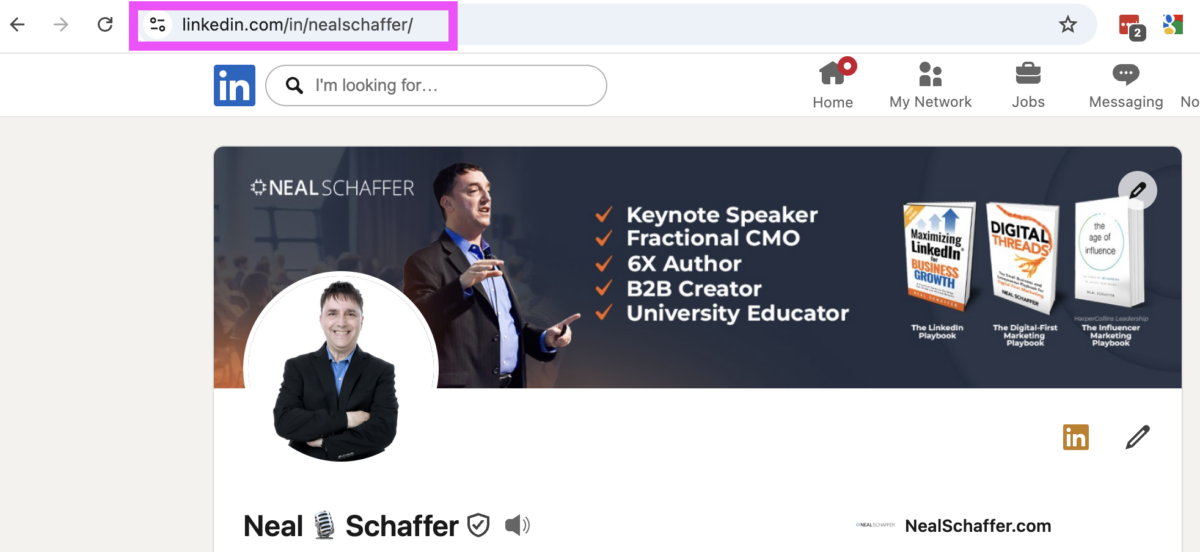
For most people, this profile URL includes their first and last name. Then there will be a series of numbers which differentiates the profiles of people with the same name. It is a generic URL that follows a specific pattern.
Should I edit my LinkedIn URL?
Of course, most people keep this default URL. And it isn’t always because they don’t know how to change your LinkedIn URL. Rather, it doesn’t occur to most people to change it at all, because they don’t understand the reasons that they should. Armed with the right information, however, you may decide that this is advantageous for you.
The computer-generated URL that LinkedIn provides you upon signup serves you no purpose.
LinkedIn gives you a URL for one purpose: letting people view your profile. In fact, everything on the Internet needs a URL to be visited. And of course, each URL must be unique so that the right page is pulled up at the right time.
Generic URLs, while serving their basic purpose, don’t do anything special. They don’t have specific value or relevance to the topic on each page. While a website administrator will typically assign the URL in part based on topic or keyword, LinkedIn only uses a name and numbers. This means that each profile address for people with the same name can only be distinguished by different numbers.
In practice, this means one thing: default URLs don’t have any branding for LinkedIn members. This means that, while the generic URL doesn’t “hurt” your brand, it doesn’t help you either. If you know how to change your LinkedIn URL, then you can make that URL work for you, and it is one of the fastest fixes on my list of LinkedIn profile tips.
Edit it to claim your name before other LinkedIn profiles do.
Since your existing LinkedIn URL isn’t doing anything to help you, knowing how to change your LinkedIn URL is a great way to change this. Back in the “wild West” days of Internet address registries, we said that it was important to state your claim before other people do so. This was true not only for branding purposes, but because of cybersquatting. Briefly, cybersquatting is the practice of buying domain names that are relevant to a particular person or business, then selling them to the business.
With LinkedIn, cybersquatting isn’t possible, in that you can’t “sell” the URL. However, people can still claim your preferred profile URL before you do. This can put you on the back foot, especially if your intended LinkedIn URL would be an important part of personal branding.
Make it easier to remember and thus share with customers, hiring managers, or your network.
On the other hand, by claiming your name and the URL that goes with it, you have an instantly recognizable LinkedIn profile. This means that you won’t have to remember it when networking, either on LinkedIn or through other means. In fact, you could even add the link to your business card or email signature. Both of these options boost the presence of your LinkedIn brand across other channels.
Another great way to benefit from a custom URL is when you are nurturing sales leads. Depending on the kind of sales you’re doing, establishing yourself as a subject matter expert can be especially valuable. In addition, it’s always important to project a professional image. With a custom URL, you boost a professional image as an individual. If your URL reflects your brand affiliation, it also helps project your SME status.
Showcase your brand image in your URL.
For corporate accounts and company owners, there’s another benefit to a customized LinkedIn URL: it showcases your brand. Knowing how to change your LinkedIn URL means that you can change it to the name of your company, for example. Or it could be relative to personal branding or expertise. Either way, this is a valuable opportunity to further your branding on the Internet.
What should my LinkedIn profile custom URL be?
Now that you know the benefits of changing your LinkedIn URL, it’s important to decide what your URL should be. This has a major impact on your personal or corporate brand, so don’t choose lightly. With that said, there are several good ways to choose.
Use the same thought process as your website.
First, you should remember that web addresses, whether on social media or as a freestanding website, reflect heavily on you. For that reason, knowing how to change your LinkedIn URL shouldn’t be used to pick something you’ll soon regret.
With that in mind, you should pick a LinkedIn URL that is compatible with any website that you may have. And if you don’t have a website, then think about what you would pick. This means that your URL should put your best foot forward and represent who you are as a professional. Furthermore, if you are building a “personal brand,” and you should, then your choice should reflect that brand.
Grab your name if your website would be yourname.com
This is the choice I made for my own LinkedIn URL, and if you have a website that’s your name, you should use it too. I recommend this in particular because then you have consistency across your website and LinkedIn account. It’s an easy choice that doesn’t require any creativity.
Using the same name for both your URL and website removes any potential confusion between your profile and the owner of your website. Your name as a LinkedIn URL can’t be misunderstood and accidentally offend anyone, either. Finally, using your name makes the custom URL even easier to remember, both for you and for the people you share it with.
The other option is to use your brand name (pdcasocial) or hybrid name+keyword brand name (fractionalcmoneal).
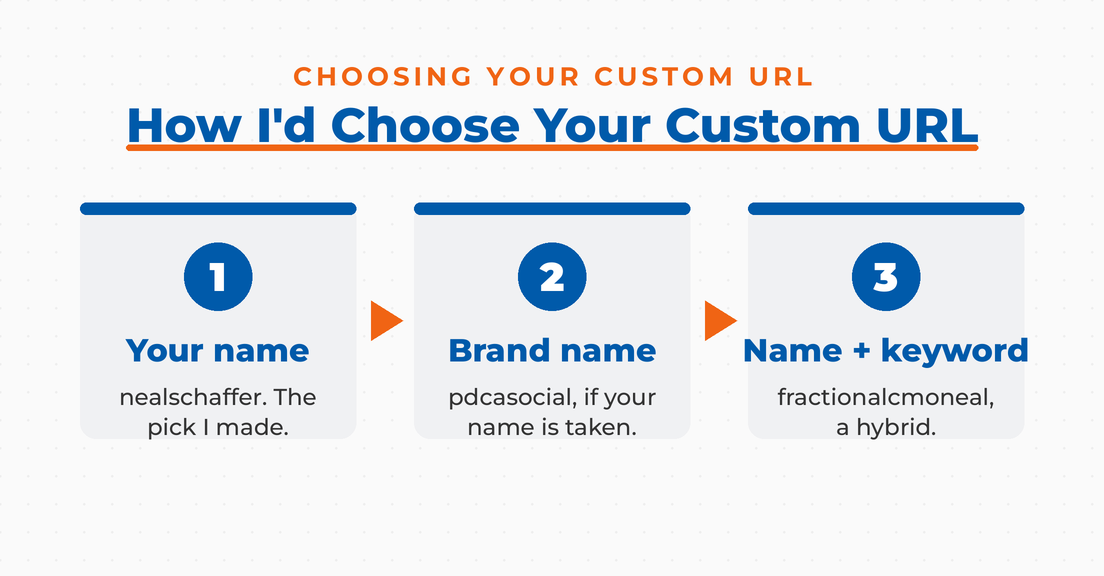
Of course, sometimes your name isn’t the right choice for your LinkedIn URL. For instance, people with common names may find that someone else has already claimed it. It also could be that your website isn’t your name for whatever reason. Furthermore, some people don’t want to use their names for this purpose, preferring another kind of branding.
In these situations, there are other options. For instance, you can use your website, company, or brand name. I am the founder of a company (PDCA Social), so I could use this instead of my name. Another option is to use a hybrid of your name and a relevant keyword. These keywords should reflect your personal branding or profession. I’d especially suggest this last approach when your name is already “taken.” It shows that you are taking your personal brand seriously.
The Digital Marketing Playbook for Small Teams
My latest book helps small businesses, entrepreneurs, and marketers bring search, email, and social together into one digital marketing strategy that actually compounds.
Drawing on my work as a Fractional CMO, Digital Threads turns complicated tactics into a clear, practical plan you can follow, whatever your budget or team size.
Grab your copy on Amazon and start weaving your own digital threads. Click the cover or the button below to get started.

LinkedIn profile URL restrictions
As with many other websites, LinkedIn has specific rules for your public profile. This includes the choice of your profile URL, and the rules are outlined on their website. Let’s take a look at their specifications.
Your custom URL can be 3-100 characters long. Don’t use spaces, symbols, or special characters. In practical terms, this makes it harder for you to pick your name in a slightly altered format. For instance, I couldn’t use ne@lschaffer.
The customizable part of the URL is case insensitive. This means that you can’t use capital letters to try and differentiate your choice, either. One example of this principle is that nealschaffer and NealSchaffer would form the same URL.
You can change your URL up to five times within six months. Once you have changed your URL for the fifth time, you won’t be able to change it for another six months. Moral of the story: know what you want as your LinkedIn URL. Mastering how to change your LinkedIn URL doesn’t mean it can be done constantly just to be “cool.”
If a member uses a URL and then changes it, the original URL will be unavailable to members other than the original owner for six months. From LinkedIn’s perspective, this is very practical: if a URL has been used, then reassigning it too soon will make for plenty of confusion. The first owner’s contacts could use it and then get a different profile. This wouldn’t provide a good experience for anyone.
How to Change Your LinkedIn URL
Now that you know the why’s of changing your LinkedIn URL, and what you should pick, you need to know how to change your LinkedIn URL. This is a relatively straightforward process, fortunately.
First, go to your own profile the same way I told you to do it above. On the right side of your profile page, next to your profile background image, you’ll see a box labeled “Public profile & URL” with your current URL displayed. Click the pencil icon, and LinkedIn opens your Public Profile Settings in a new tab.

On that page, look at the right rail for the box labeled “Edit your custom URL.” Click the pencil icon, type in your choice of URL, and hit save. The change takes effect immediately.
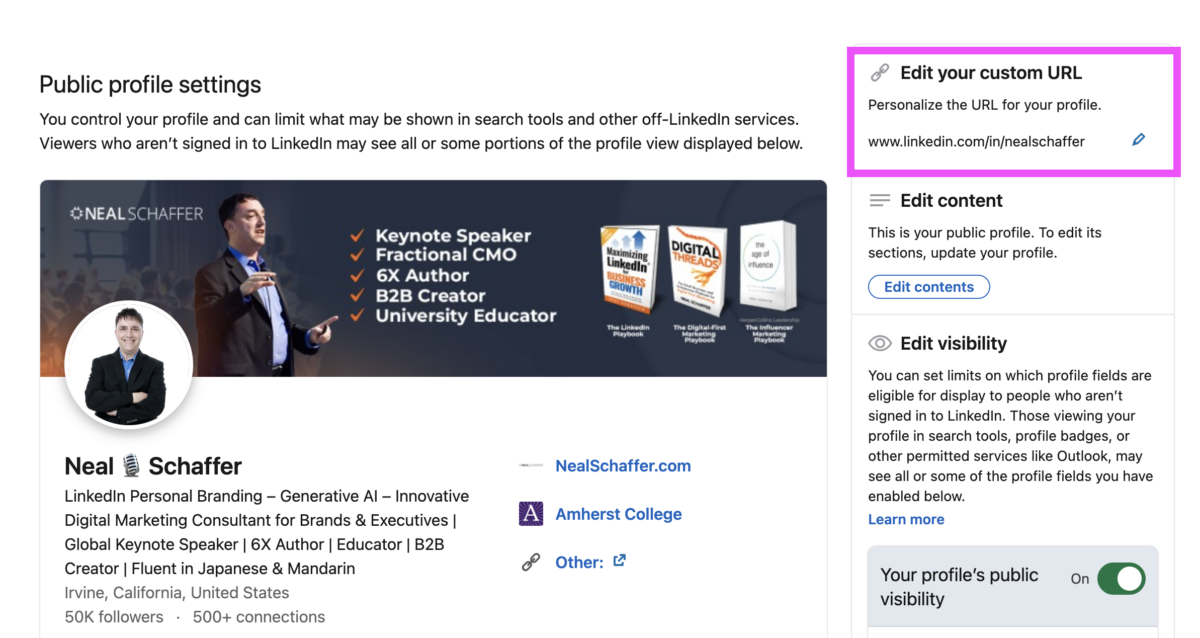
The alternative path runs through your settings: click your profile photo in the top navigation, select Settings & Privacy, choose “Visibility” in the menu, and click “Public profile settings.” Both routes land you on the same Public Profile Settings screen.
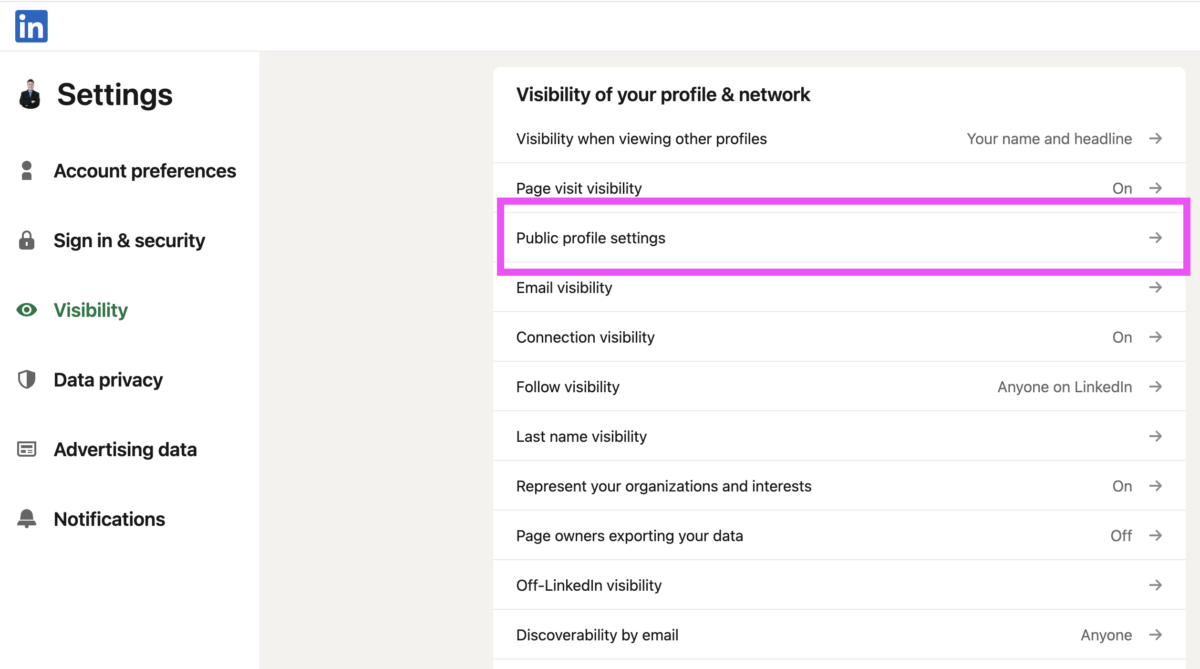
As you can see, this is pretty easy.
What happens when you change your LinkedIn URL?
One reason why people may hesitate to change their LinkedIn URL is their concern that people won’t see their profile using the old URL. However, this is not actually a problem. In practice, LinkedIn users often report that the old URL forwards visitors to the new one for a time, though LinkedIn makes no guarantee that it will.
With that said, LinkedIn did say that the old URL is released to be reused by other people after six months. It may be that the old address won’t work after that. Of course, this won’t be a major issue if you immediately start circulating your new URL. As soon as you change it, be sure to update your business cards, website, and email signatures. This way, you can reduce the chances of people using the old URL after six months.
For most people, their LinkedIn profile URL is considered to be something that they can’t change. However, this isn’t true. In fact, LinkedIn allows users to change their URL, subject to some constraints. They even encourage this by making it easy to learn how to change your LinkedIn URL. Especially considering the advantages of making this change, there’s little reason not to.
Frequently Asked Questions About Changing Your LinkedIn URL
Go to your own profile and find the box labeled “Public profile & URL” on the right side of the page. Click its pencil icon to open your Public Profile Settings. There, find “Edit your custom URL” in the right rail, click the pencil, type your new URL, and save. The change takes effect immediately.
Your name, ideally matching your website if you own one, since consistency across your web presence makes you easier to find and remember. If your name is taken, use your brand or company name, or a hybrid of your name plus a keyword that reflects your profession or specialty.
LinkedIn allows up to five URL changes within a six-month period. After the fifth change, you must wait six months before changing it again. Treat the choice as semi-permanent: pick something you intend to keep, since every change invalidates the address you have already shared.
Your old URL becomes unavailable to other members for six months, after which LinkedIn releases it for anyone to claim. Don’t count on the old address working indefinitely. Update your resume, business cards, email signature, and anywhere else you’ve shared it as soon as you make the change.
Modestly. A clean URL containing your name reads better in Google results and supports the consistency search engines reward across your web presence. The bigger wins are practical: a custom URL is easier to remember, cleaner on a resume or business card, and more professional in every context you share it.
Don’t Stop Here: Go Change Your LinkedIn URL Today
You now know everything required to make this change. Find your current URL, decide what your custom one should be, and claim it before someone else with your name gets there first. The whole process takes less than a minute. Then spend a few more minutes updating your resume, email signature, and anywhere else your old URL appears.
A custom URL is one small piece of a LinkedIn presence that works for you. If you want to see how the platform is performing as a marketing channel right now, my collection of LinkedIn statistics is a good next stop. And if you are ready to go deeper on building your brand and business there, download a free preview of Maximizing LinkedIn for Business Growth.